
How to Install PS2 BIOS on (PCSX2, Android, Steam Deck, RetroArch, EmuDeck)
Are you one of those people who’s a complete beginner and doesn’t know how to install the BIOS in your console? Then don’t worry; our website provides BIOS files for every region and model. Now we will guide you on how to install these files in your emulator. This is a complete guide for every user, whether you want to play games on Android, Windows, or iOS devices. I hope this guide covers everything you need to know about BIOS files and how to install them in your emulator, so let’s dive in.

How to Install PS2 BIOS on Every Platform?
Suppose you use PCSX2 and AetherSX2 to play games. You put the copy of your game in and then click on Play, but then suddenly the screen goes black, and you receive the message “No BIOS file found.” There is nothing wrong with your console or emulator; you just don’t have the complete software files. And downloading these files is so easy; you can download them within a few minutes. In this guide, you’ll learn how to install the PS2 BIOS on PCSX2, Android, Steam Deck, RetroArch, and EmuDeck.
Requirements for BIOS installation:
Here are some essential things you must have before the installation process. Without these, the dumping or installation process is impossible to complete.
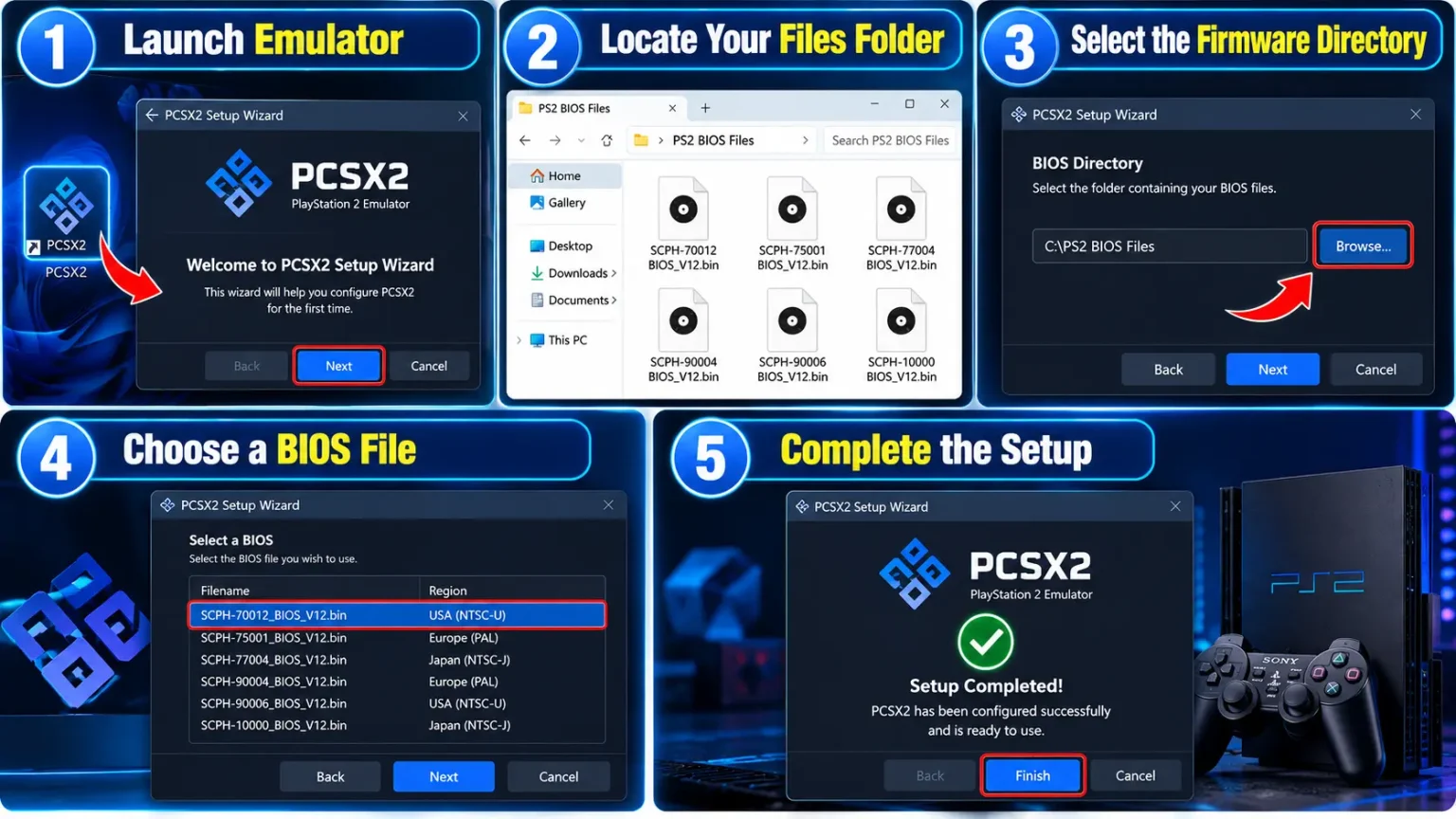
- If you don’t want to download these files from our website, you can dump them directly from your console, and we have provided the complete information on how to extract files from the console in our previous blog.
Method 2: Fast Boot vs. Full Boot
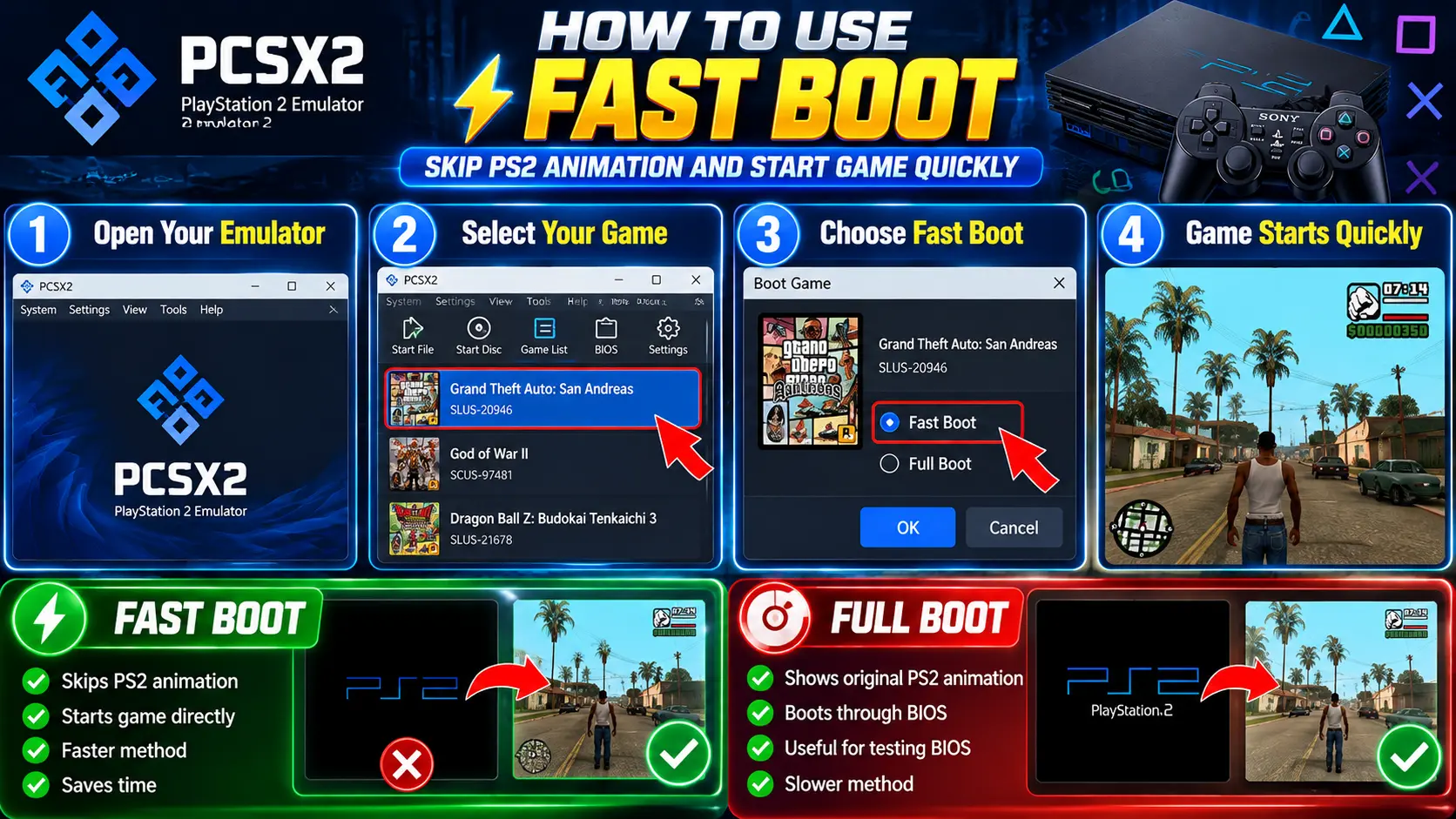
After installing the freeware in PCSX2, you will see two options: Fast or Full boot. Now I will tell you which option to choose and what the difference between them is.
Fast boot:
Fast boot means that your emulator will skip the original animation of PS2 and directly dive into the game. It is the fastest method.
Full boot:
Full boot is the method in which the game is started through bios and it shows the animation of PlayStation 2. It is an effective method for checking the working of the firmware.
- Open the emulator.
- Click on the game you want to play.
- Then click the Select the Full Boot option if it is available.
- The game will start with proper PS2 animation.
Method 3: Through Settings After Launching PCSX2:
If you have not configured the BIOS on the first launch, you can also configure it after that. Now we will see the same process.
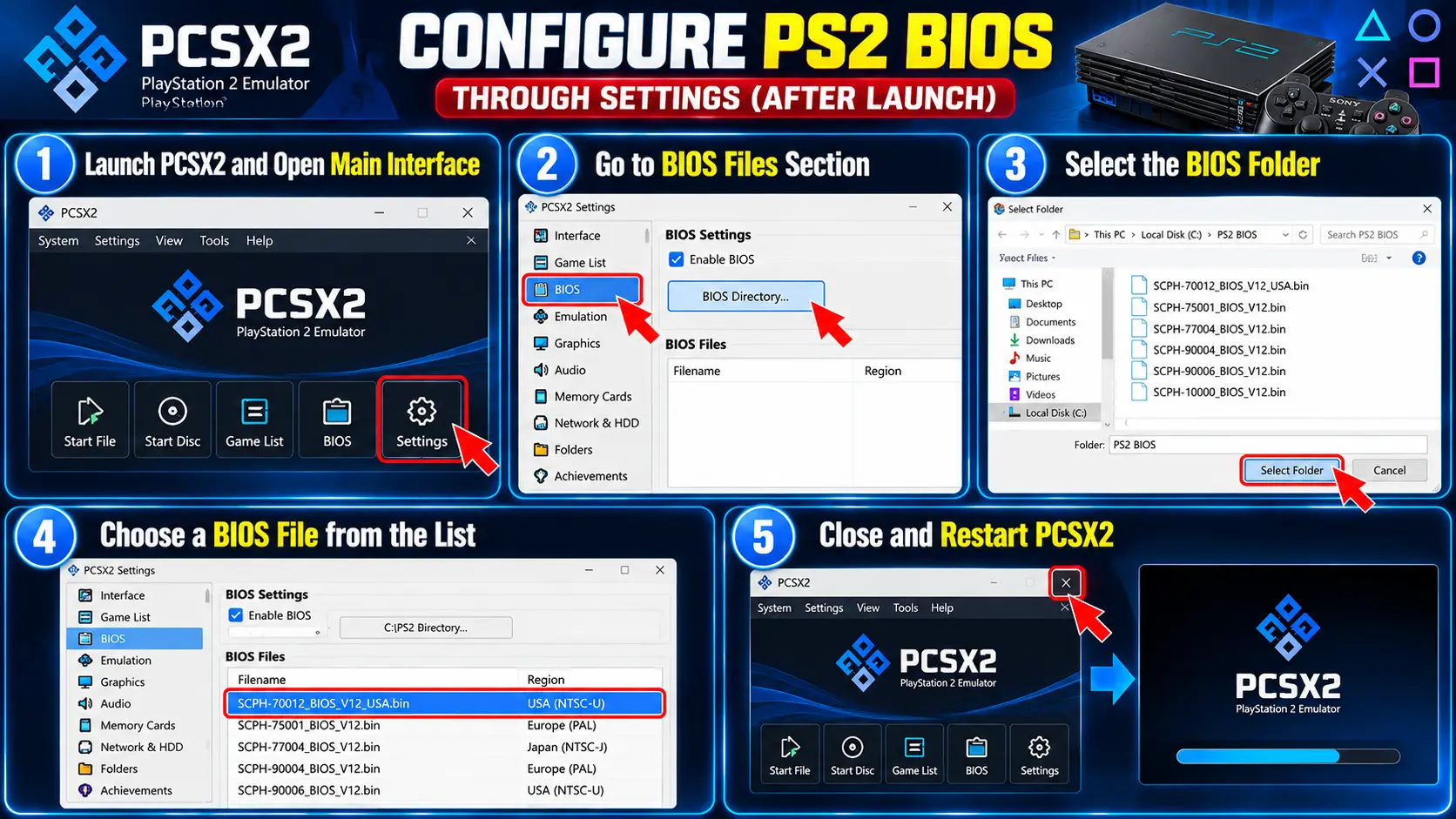
- Tip: Extract the firmware from your own console, because this emulator requires a compatible file. Or you can also download them from our website because they are completely working.
Requirements for BIOS installation:
AetherSX2 is the most convenient emulator for Android users who want to play PS2 games on Android devices. But it is not available on the Google Play Store, so you have to download it from another trusted source. Complete method explained:
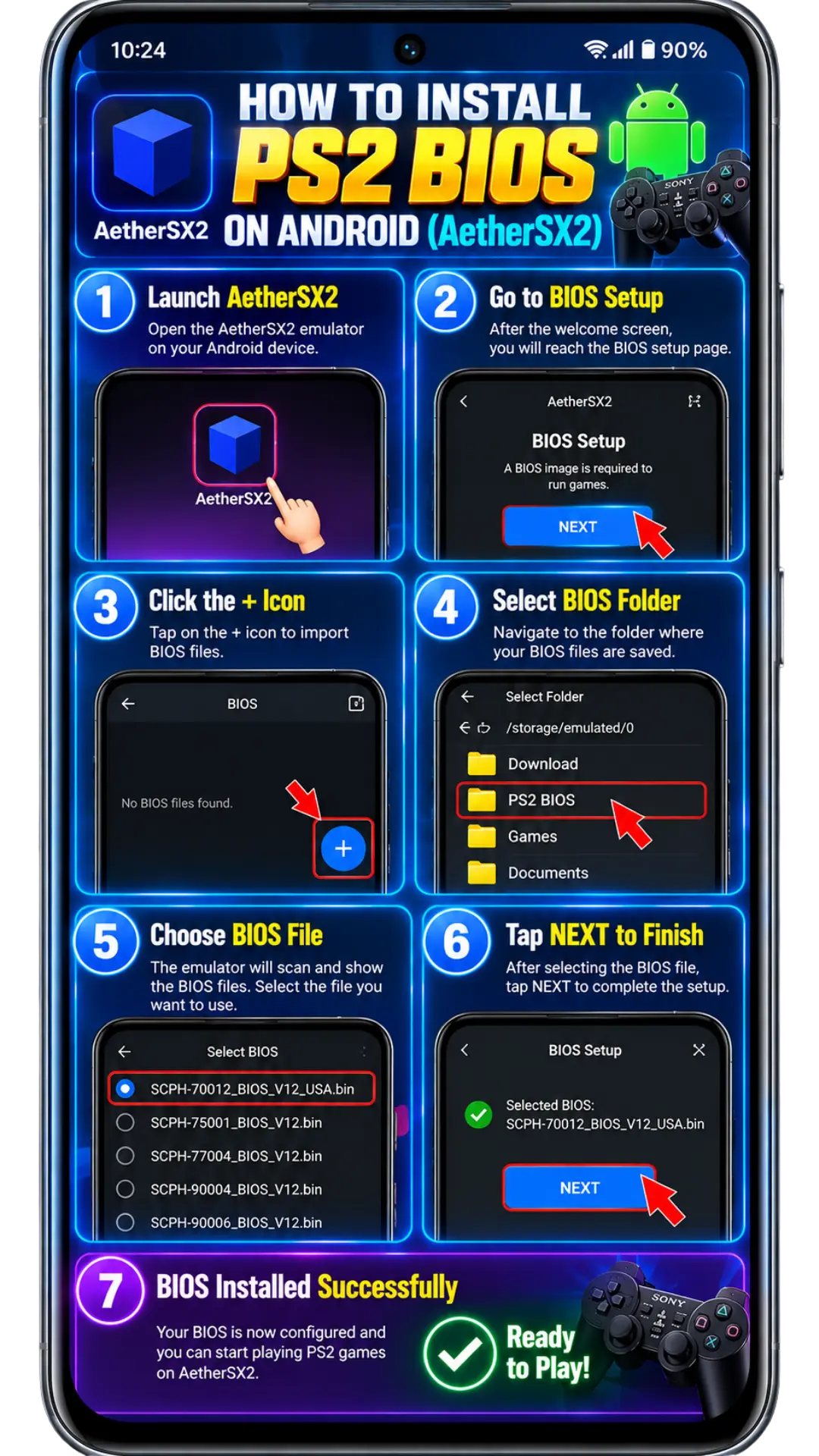
If you have already skipped the first launch setup, then you can follow this method:
- Go to the settings of the AetherSX2 emulator.
- Then go to the core settings option and click on BIOS.
- Then give the correct directory to your .bin file in the bios folder.
- Then click on the confirm button, and your emulator is ready.
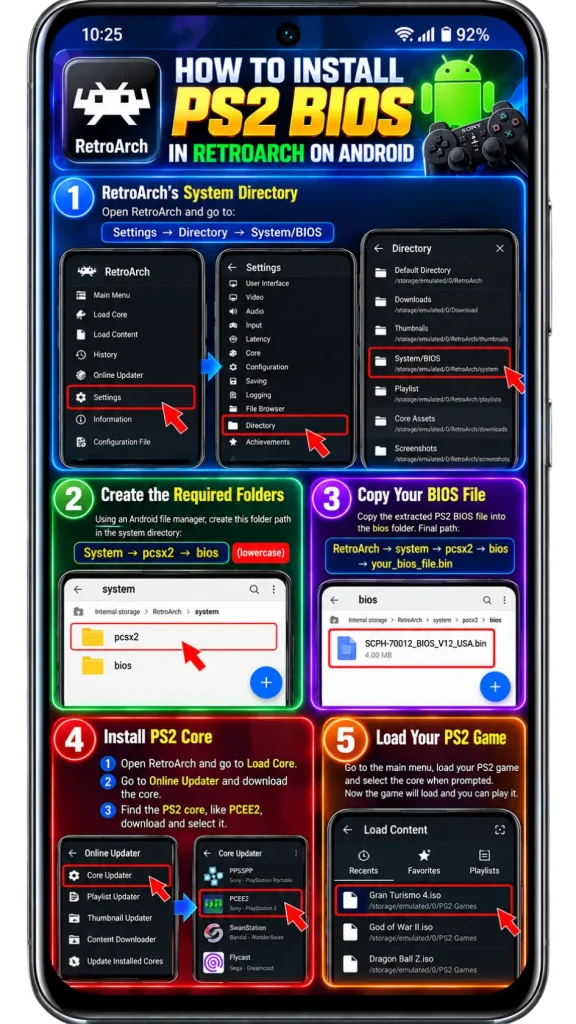
How to Install PS2 BIOS in RetroArch on Android
RetroArch is a multi-device emulator that uses cores to run games and different files. It is a reliable emulator for android users, so now we will discuss the bios installation process in it.
How to Install PS2 BIOS on Steam Deck (via EmuDeck)
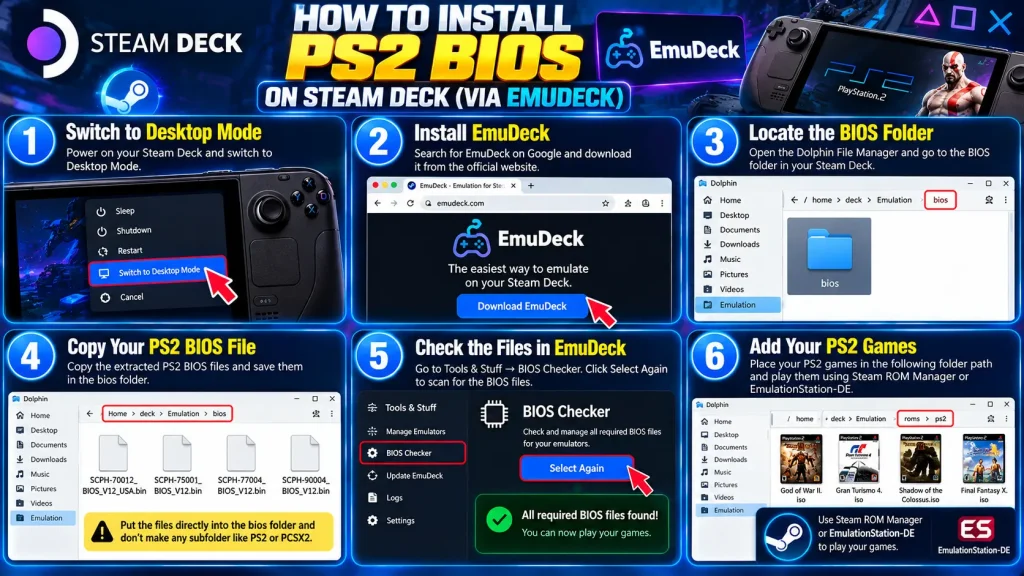
If you want to play PS2 games on your Steam deck, you can do it with the help of the EmuDeck emulator; all you need is compatible firmware and to dump them correctly. Here is the process explained:
- Step 1: Switch to Desktop Mode
Firstly, power on the device and switch to desktop mode. In this way, you can handle the folder and files for the EmuDeck.
- Step 2: Install EmuDeck
Then you have to search for EmuDeck on google and download it from the official website.
- Step 3: Locate the BIOS Folder
Open the Dolphin File Manager in your drive and go to the BIOS files directory. The path will look like this:
/home/deck/Emulation/bios/
- Step 4: Copy Your PS 2 BIOS File
Now copy the extracted PS files and save them in the bios folder. Now the folder path will look like this:
Emulation/bios/your_ps2_bios_file.bin/other_bios_files
Remember: Put the files directly into the bio folder and don’t make any subfolder like PS2 or PCSX2.
- Step 5: Check the Files in EmuDeck
If you want to check the files in the emulator, go to Tools & Stuff → BIOS Checker. Click Select Again; the emulator will scan for the missing files. And if all are complete, you can play your games.
- Step 6: Add Your PS2 Games
To play the game, place the game in the following folder path:
/home/deck/Emulation/roms/ps2/
Then you can use Steam ROM Manager or EmulationStation-DE to play the games.
How to Install PS2 BIOS on EmuDeck (Windows)
EmuDeck configuration is quite easier on Windows as compared to Steam Deck. You can enjoy PlayStation 2 games on your screen with just these few steps:
- Step 1: Install EmuDeck on Windows
First, install EmuDeck on your Windows PC; to do that, go to Google and search for the emulator and download it from the official website. During installation, also choose where you want to store your emulation files.
- Step 2: Locate the BIOS Folder
Then open File Explorer on your pc and go to the folder you selected during installation. The common location is like this:
%USERPROFILE%\emudeck\Emulation\bios
- Step 3: Copy Your PS2 File
Then copy all the PS2 files in your Bios folder. The path will look like this:
Emulation/bios/your_ps2_bios_file.bin/other_bios_files
- Step 4: Check the BIOS
To check the availability of the files, click on Check Again to scan for missing files.
- Step 5: Launch Your PS2 Games
To load, you have to place the game in the following folder:
Emulation\roms\ps2
How to Install PS2 BIOS on RetroArch (PC)
RetroArch allows you to play PS2 games on your window device but using its cores like LRPS2 or PCEE2. For that, you just need a compatible BIOS. Here is the process explained:
- Step 1: Install RetroArch on Your PC
First, download RetroArch from the official website and install it on your computer.
- Step 2: Install a PS2 Core
Now, to install the PS2 core in RetroArch, follow this:
- Open RetroArch.
- Then go to Main Menu → Online Updater → Core Downloader.
- Then find a PS2 core for your PC, like LRPS2.
- Select it to download and install.
- Step 3: Locate the System Folder
Open your emulator and then go to:
Settings → Directory → System/BIOS
- Step 4: Create the BIOS Folder:
Then open File Explorer, go to the system directory, and create the following folder structure:
system/pcsx2/bios
- Step 5: Copy Your PlayStation 2 BIOS File
After that, you have to copy the extracted files into the bios folder. The final path will look like this:
RetroArch/system/pcsx2/bios/your_bios_file.bin
- Step 6: Load Your PS2 Game
Then go to the emulator and do these steps:
- Go to Load Core and choose your installed PS2 core.
- Then go to the Main menu → Load Content.
- Find your game and just launch it.
Conclusion:
I hope you have understood everything about how to install PS2 BIOS on every platform like PCSX2, Android, Steam Deck, RetroArch, and EmuDeck. I have explained these processes in the easiest and best possible way I can. Always make sure to download the emulator from trusted sources and always update it. Moreover, first try to dump the BIOS from your own console; if you can’t, then you can download it from our website. If you want every possible information about bios pf palysation2, then bookmark our website because this is the best for it.